Research with its source
Save a selection with its source.
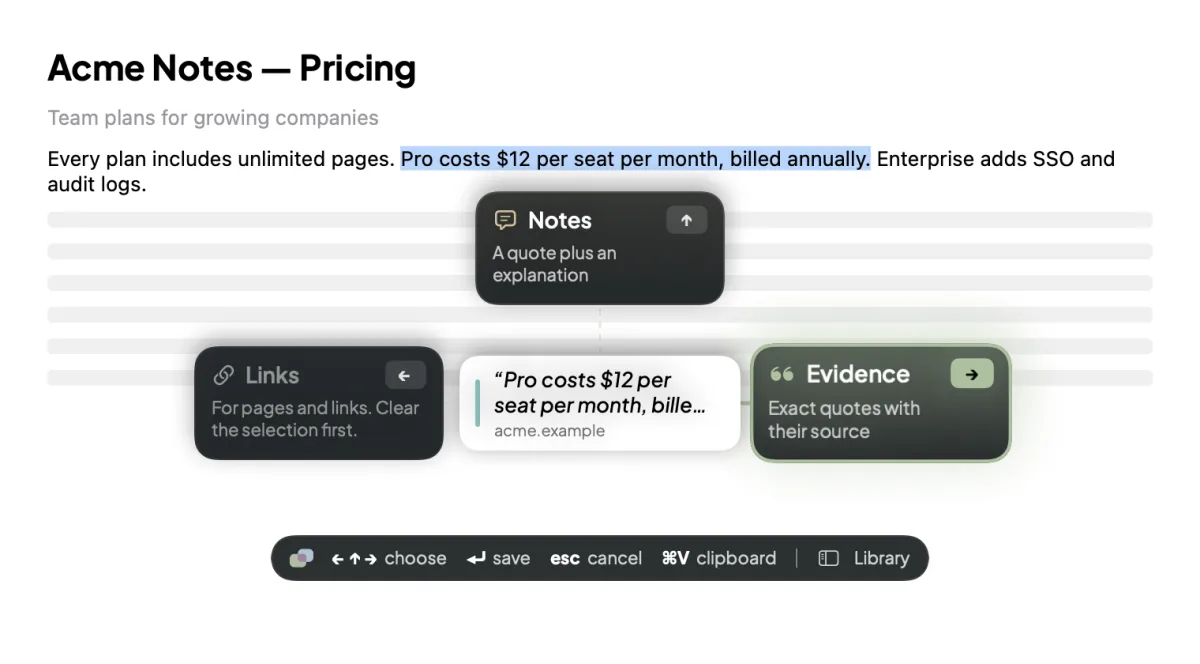
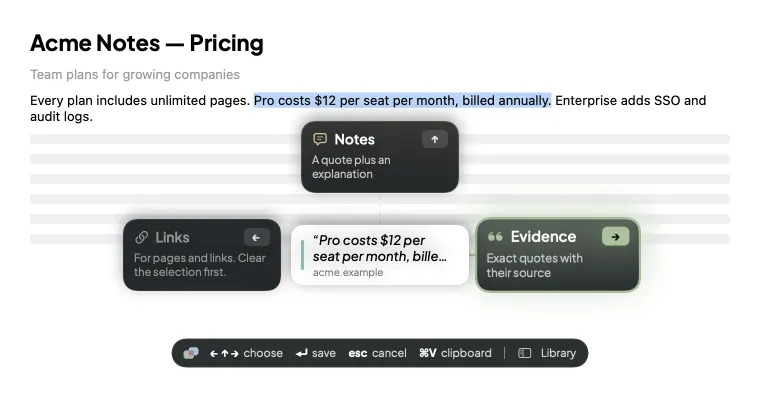
Select text in any app, press ⌃⌥⌘S, done.
Your research, where you left it
The Mac app that remembers your research: every quote with its source, every video to the second. Ask, and it takes you straight back.
First launch needs one extra click.

How it works
Select text anywhere, press ⌃⌥⌘S. Saved, with its source.
PLACE files it under the right project by itself.
One click, and you are back at that sentence or that second.
A closer look
Every project gets its own place.

Open one and everything for it is there. Nothing to file by hand.

Never lose where it came from. One button reopens the page at that sentence.
Features
Research with its source
Select text in any app, press ⌃⌥⌘S, done.

Video moments, to the second
No more scrubbing through a 40-minute video for one sentence.

Answers that show their sources
Type what you half-remember. Every sentence of the answer sits on the passage that backs it up.

Evidence for your AI assistants
Stop re-explaining your research. Claude, Codex and Gemini can read what you choose to share.
Why PLACE
Bookmarks remember the page.
PLACE remembers the sentence.
Notes apps lose the source.
PLACE can't.
Chatbots guess.
PLACE shows its work.
Apple Intelligence inside
Everyday AI runs on Apple Intelligence, right on your Mac. It costs you nothing and uploads nothing. No PLACE subscription.
Apple Intelligence needs macOS 26 on a supported Mac.
Privacy
No account, no sync, no servers of ours.
Nothing goes to a cloud AI until you allow it.
One click pauses Memory. Delete anything, whenever you like.
Install
One extra click the first time, because this hackathon build isn't notarized by Apple yet.
Open the download and drag PLACE onto Applications.
macOS says it can't check PLACE. Click Done.
Open System Settings → Privacy & Security and click Open Anyway. Once.
FAQ
Select text in any app and press ⌃⌥⌘S. A small map appears: ← saves it to Links, ↑ to Notes, → to Evidence, and Return confirms. In supported browsers PLACE keeps the page address, so Open Source at Quote takes you back to the highlighted sentence.
A place gathers the saved items that mention one of its keywords, plus related memories. Give it one current task and PLACE may suggest one timely next step from your own research, with its sources. Saved items that match no place are under Unplaced.
Memory is off until you turn it on. With the Chrome companion it keeps the parts of YouTube videos you played and the articles on sites you approve; with screen memory, the text of the window in front about every 10 seconds. Activity lists all of it by day.
Typing in Ask searches your memory and saved quotes on this Mac, without AI. Press Return to ask your AI provider: it gets your question and the best passages and writes up to four sentences. PLACE keeps a sentence only if it matches the passage it cites, and every time and link comes from PLACE's own record.
Catch Me Up reviews the mail and chat windows screen memory saw in the last 24 hours and lists what still needs you. With Apple Intelligence it runs on this Mac; otherwise PLACE asks before sending that text to your AI provider.
Press ⌃⌥⌘V in any app. PLACE keeps one picture per second of the window in front while a countdown runs in the menu bar; press it again to stop early. It is the only time PLACE keeps pictures, and only because you started it.
Claude Desktop, Claude Code, Codex and Gemini CLI can read what you choose to share, read-only, through a connector that runs on this Mac. ChatGPT and Grok can't reach apps on your Mac, so you paste a brief into them instead. Every read is listed in AI connections.
Everything is in ~/Library/Application Support/PLACE on this Mac. Saved items are in board.json. Memory (videos, articles and screen text) is in Memory.sqlite. Visual mode pictures are in the Visual folder. What assistants may see, and the list of their reads, are in assistant-access.json and assistant-access-log.jsonl. API keys are in your macOS Keychain. Nothing is synced.
Only three things. Text sent to a cloud AI provider: a quote you explain, after you press Send; Ask, suggestions and summaries, after you allow your provider. What an assistant reads through AI connections, which then goes to that assistant's provider. And video thumbnails, which are loaded from YouTube. With Apple Intelligence, AI runs on this Mac and sends nothing.
Click Recording at the bottom of the sidebar; it changes to Paused and nothing new is remembered until you click it again. Pause Memory is also in the PLACE menu in the menu bar. Saving with ⌃⌥⌘S still works while Memory is paused.
In Sources & Privacy → Privacy & data: Clear Screen Memory, Delete All Visual Sessions, or Clear All Memory. To remove one video, article, screen capture or visual session, open it in Activity and delete it there. Saved items are separate: delete one from its inspector, or all of them in Settings → Privacy & Data. Memory older than your setting (7, 30 or 90 days) is deleted automatically.
Password managers (1Password, Bitwarden, LastPass, Dashlane), Keychain Access, Passwords, PLACE itself, the login window and the screen saver; private windows in Chrome-family browsers; and any time the screen is locked or you've been away for 5 minutes. It keeps only the text: the picture is thrown away right after reading.
Free. No account.
